Build Guide
Everything you need to build your own Roam controller from scratch. Total build time is about 3–4 hours if you have all the parts. Soldering experience helpful but not required — all connections are simple point-to-point wiring.
Overview & What It Does
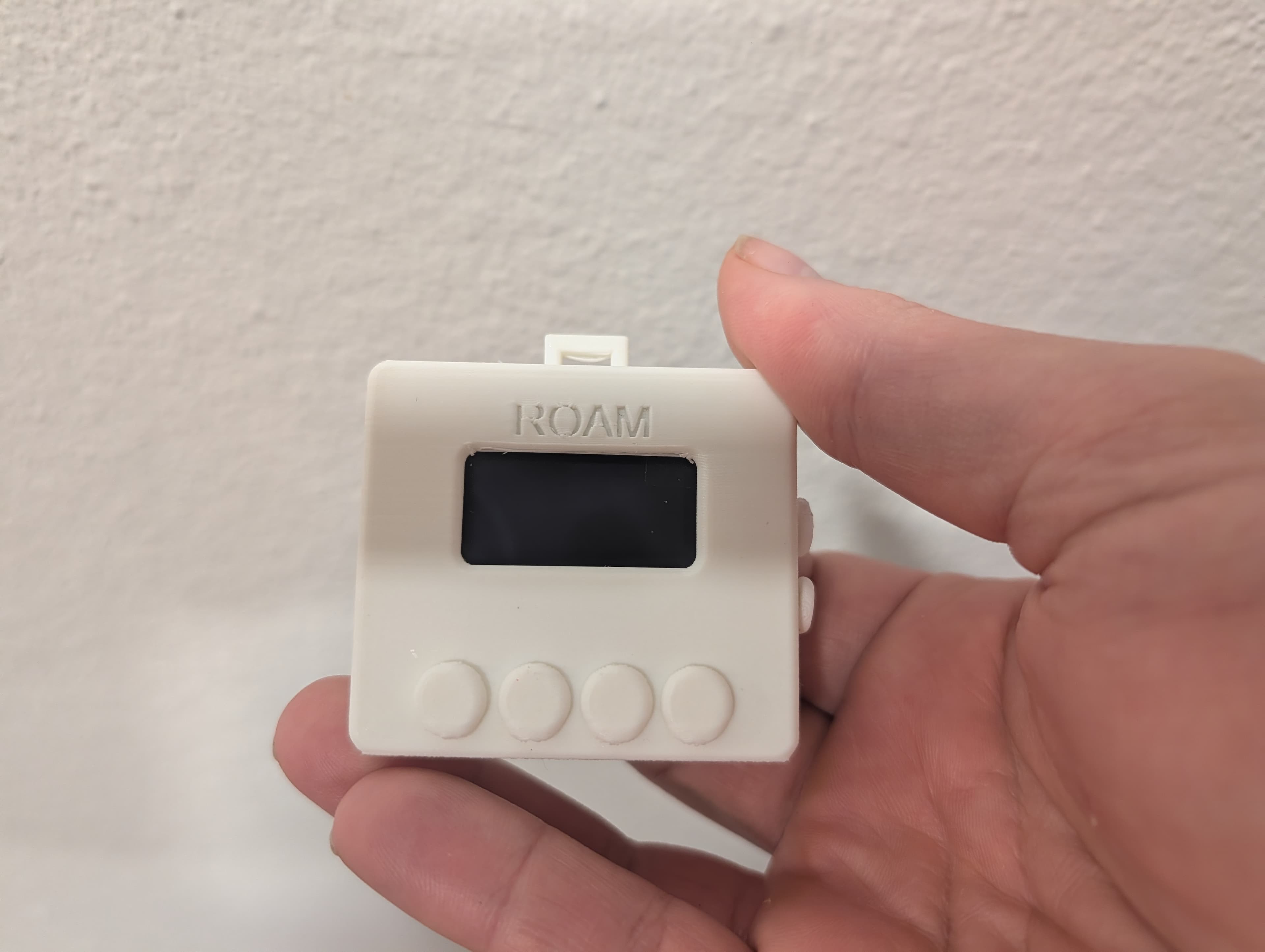
Roam is a wrist-mounted Bluetooth controller that sends keyboard shortcuts to your computer. It exists because I got tired of reaching for the keyboard every time Claude Code needed a "y" to approve a file edit, or when I wanted to switch tmux panes, or toggle dictation on and off.
The controller straps to your forearm (non-dominant hand) and you operate it with your opposite hand. Four buttons map to your index, middle, ring, and pinky fingers. Two additional thumb buttons handle scrolling. Every button supports three gesture types — short press, long press, and double tap — giving you 12+ distinct actions from a tiny device.
It connects over BLE as a standard HID keyboard, so there's no driver or software to install. It works with macOS, Linux, Windows, iPad — anything that pairs with a Bluetooth keyboard. The firmware sends configurable key combinations, and the 1.3" OLED screen shows you what mode you're in, connection status, and battery level.
Two Prototypes
The project has gone through two major hardware revisions:
- P1: Pimoroni Pico Plus 2 W — The original prototype, using btstack for BLE. Worked, but the Pico has no built-in battery management, so it needed a separate charging circuit and was bulkier than I wanted.
- P2: Seeed XIAO nRF52840 Sense — The current version. Half the size, built-in LiPo charging via USB-C, native BLE via Bluefruit library, and enough GPIOs for everything. This is what the guide covers.
Bill of Materials
Total cost is roughly $45–55 depending on what you already have. The XIAO board is the most expensive single part. If you have a 3D printer, the housing costs a few dollars in PLA.
| Part | Qty | Description | Price | Link |
|---|---|---|---|---|
| Seeed XIAO nRF52840 Sense | 1 | Main MCU — BLE 5.0, USB-C, built-in LiPo charging, tiny footprint | ~$16 | Buy → |
| 1.3" SH1106 OLED (I2C, 128x64) | 1 | Monochrome OLED — shows connection status, mode, battery. I2C interface (4 pins) | ~$8 | Buy → |
| 6x6x5mm Tactile Buttons | 4–6 | Standard through-hole tactile switches. 4 for main buttons, 2 optional for scroll | ~$3 (pack) | Buy → |
| Coin Vibration Motor (3V) | 1 | 10mm flat coin motor. Provides haptic feedback on button press and BLE events | ~$2 | Buy → |
| BC337 NPN Transistor | 1 | Drives the vibration motor. GPIO can't source enough current directly | ~$0.50 | — |
| 1K Resistor | 1 | Base resistor for the NPN transistor. Limits current from GPIO pin | ~$0.10 | — |
| 3.7V LiPo Battery (JST 2.0) | 1 | 250–500mAh. XIAO has built-in JST connector and charging circuit. Bigger = longer runtime | ~$6 | Buy → |
| 30 AWG Silicone Wire | 1m assorted | Flexible silicone-insulated wire. Get red, black, and 2–3 signal colors | ~$8 | — |
| 3D Printed Housing | 1 | Print your own (STL files provided) or order from the shop | ~$2 in PLA | — |
| Velcro Strap / Watch Band | 1 | 20mm watch-style strap or velcro strip. Threads through the clip loop on the housing | ~$5 | — |
Tools you'll need: Soldering iron with fine tip, solder (lead-free preferred), wire strippers, flush cutters, hot glue gun (for securing components in the housing), and a micro USB-C cable for programming.
Wiring & Electronics
All wiring is point-to-point — no PCB required. The XIAO nRF52840 has enough GPIO pins for everything. Buttons connect between a GPIO pin and ground, using the internal pull-up resistors configured in firmware. The OLED connects via I2C (SDA/SCL). The vibration motor needs a transistor since the GPIO can't source enough current to drive it directly.
Pinout & Connections
| XIAO Pin | Connection | Notes |
|---|---|---|
| D0 (GPIO 2) | Button 1 (Index) | Pull-up, active LOW |
| D1 (GPIO 3) | Button 2 (Middle) | Pull-up, active LOW |
| D2 (GPIO 4) | Button 3 (Ring) | Pull-up, active LOW |
| D3 (GPIO 5) | Button 4 (Pinky) | Pull-up, active LOW |
| D4 (GPIO 6) | Scroll Up (Thumb) | Pull-up, active LOW |
| D5 (GPIO 7) | Scroll Down (Thumb) | Pull-up, active LOW |
| D8 (SDA) | OLED SDA | I2C data |
| D9 (SCL) | OLED SCL | I2C clock |
| D10 (GPIO 1) | Vibration motor | Via NPN transistor base (1K resistor) |
| 3V3 | OLED VCC, pull-ups | 3.3V supply |
| GND | Common ground | All components |
| BAT+/BAT- | LiPo battery | JST connector on XIAO |
                    ┌──────────────────┐
                    │  XIAO nRF52840   │
                    │     Sense        │
                    │                  │
    Button 1 ──────┤ D0          3V3  ├──── OLED VCC
    Button 2 ──────┤ D1          GND  ├──── Common GND
    Button 3 ──────┤ D2          D8   ├──── OLED SDA
    Button 4 ──────┤ D3          D9   ├──── OLED SCL
    Scroll ▲ ──────┤ D4          D10  ├──┬─ 1K ─┐
    Scroll ▼ ──────┤ D5               │  │      │
                    │            BAT+  ├──┘   NPN (BC337)
                    │            BAT-  │      │
                    └──────────────────┘   Vibration
                         │    │               Motor
                       LiPo Battery             │
                                              GND

    All buttons: one leg to pin, other to GND
    Internal pull-ups enabled in firmware
Wiring Tips
- Keep wires short. The housing is compact. Measure twice — you want just enough length to connect components without excess bunching.
- Tin the XIAO pads first. Apply a small blob of solder to each pad before connecting wires. This makes it much easier to attach the thin 30 AWG wire.
- Color code your wires. Red for 3V3, black for GND, and distinct colors for each signal. When debugging in a tiny housing, this saves your sanity.
- Wire the buttons last. Start with the OLED (I2C), then the motor circuit, then buttons. Buttons are the easiest — each is just one wire to a GPIO and one to ground.
- Test as you go. Flash the firmware early (Step 5) and test each component as you wire it. Much easier to fix a bad solder joint before everything is packed into the housing.
Motor Driver Circuit
The vibration motor draws ~80mA, but the XIAO GPIO pins can only source ~15mA. The NPN transistor acts as a switch — when the GPIO pin goes HIGH, current flows through the 1K base resistor, turning on the transistor and driving the motor from the 3V3 rail.
GPIO D10 ──── 1K ──── Base (BC337)
                       │
3V3 ──── Motor+ ─── Collector
                       │
               GND ─── Emitter

When D10 goes HIGH → transistor ON → motor spins
When D10 goes LOW → transistor OFF → motor stops3D Printing the Housing
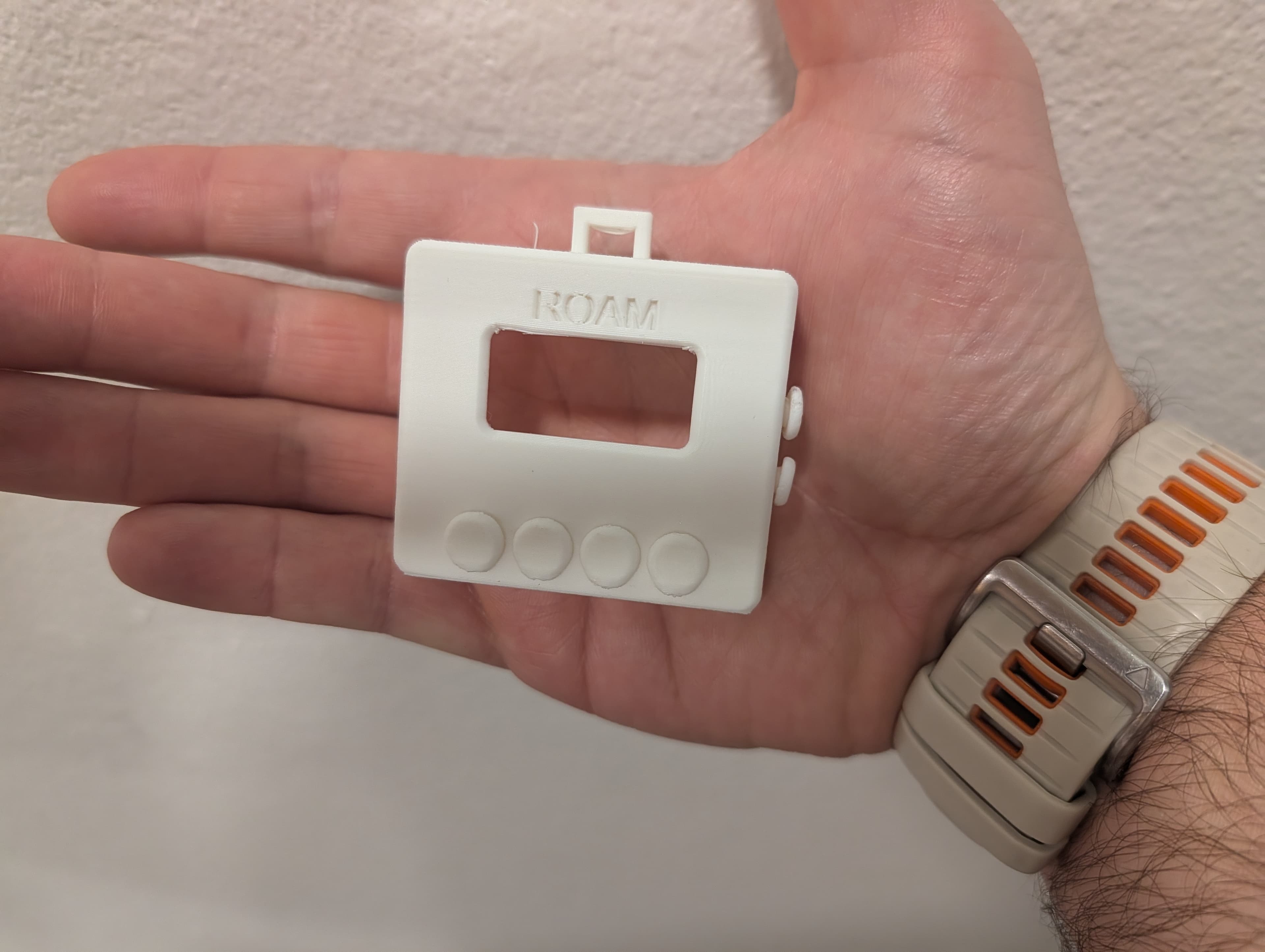
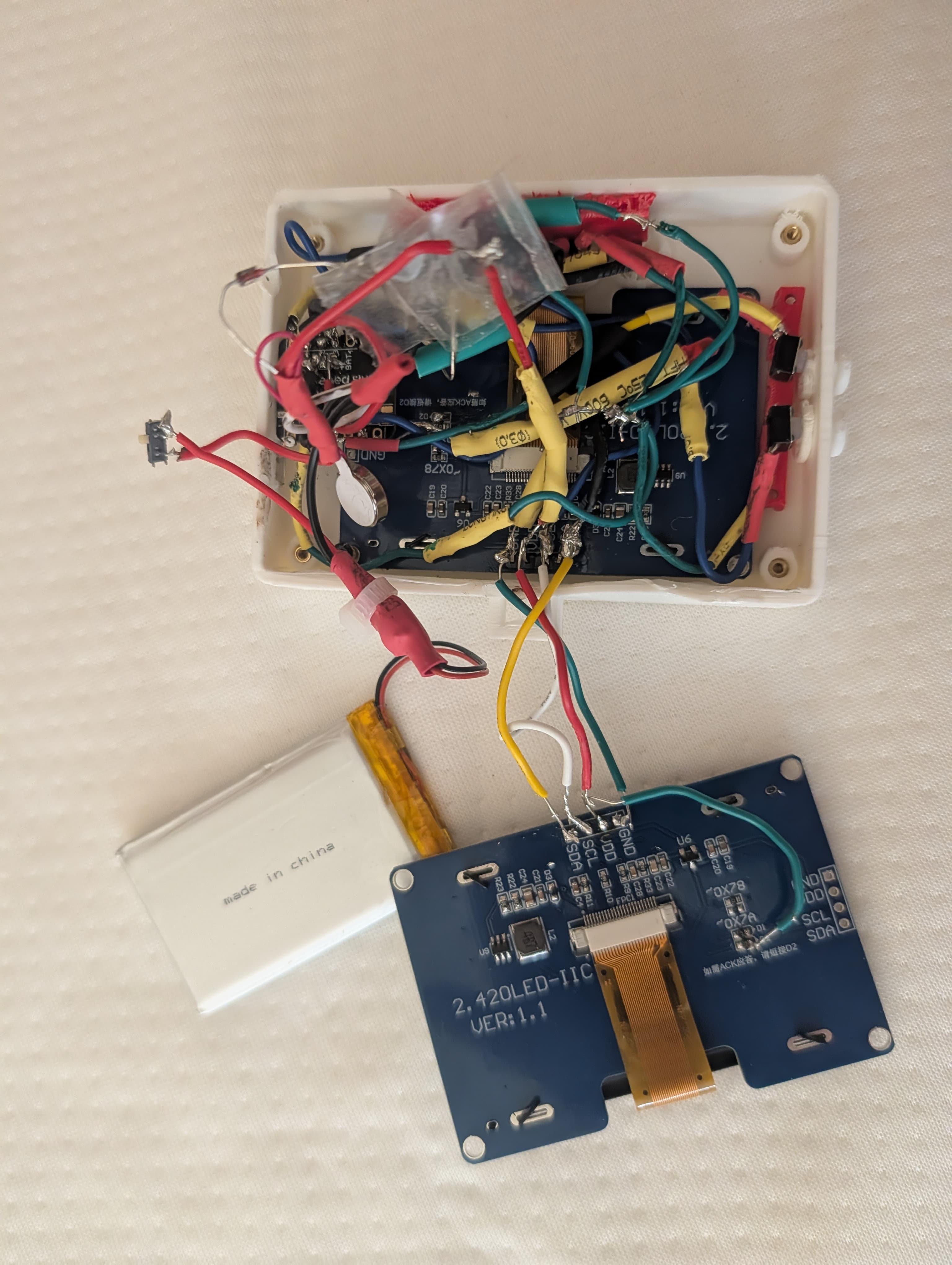
The housing is designed in OpenSCAD — parametric, so you can adjust dimensions, button positions, and screen cutout size. There are two variants:
Mini
~40mm square, compact and lightweight. Fits the XIAO, OLED, 4 buttons, and a small LiPo (~250mAh). Good for all-day wear. Clip loop on the bottom for a watch-style strap.
Mega
Rectangular, more room inside. Fits a larger battery (~500mAh), accommodates the scroll buttons, and has space for a side-mounted power switch. Better for desk use where you want longer battery life.
Print Settings
| Material | PLA (white or any color) |
| Nozzle | 0.4mm |
| Layer Height | 0.2mm |
| Infill | 20% — the walls do the work |
| Supports | Yes, for the button holes and screen cutout |
| Brim | Optional — helps with bed adhesion for the small footprint |
| Print Time | ~1.5 hours (Mini) / ~2.5 hours (Mega) |
After printing, clean up support material with flush cutters and a hobby knife. Test-fit your components before assembly — buttons should click freely through their holes, and the OLED should sit flush in its cutout. A tiny bit of sanding on the button holes can help if they're too tight.
Download STL and OpenSCAD source files from the downloads page.
Firmware
The firmware runs on the Arduino framework using the Adafruit nRF52 BSP (Board Support Package). It handles BLE HID keyboard emulation, button debouncing with gesture detection, OLED display updates, and motor control.
Development Environment Setup
- Install Arduino IDE 2.x (or use the CLI). Download from arduino.cc.
- Add the Seeed XIAO nRF52840 board. In Arduino IDE, go to File → Preferences → Additional Board Manager URLs, and add:
https://files.seeedstudio.com/arduino/package_seeeduino_boards_index.json - Install the board package. Tools → Board → Board Manager → search "Seeed nRF52" → install "Seeed nRF52 Boards".
- Install libraries:
Adafruit_SH110X— OLED driver for the SH1106Adafruit_GFX— Graphics primitives (dependency)Bounce2— Button debouncing
- Select the board. Tools → Board → Seeed nRF52 Boards → Seeed XIAO nRF52840 Sense.
Firmware Architecture
The firmware is structured around a simple main loop with non-blocking timing. No RTOS, no threads — just clean state management.
// Core architecture (simplified)

void setup() {
  // Initialize BLE as HID keyboard
  Bluefruit.begin();
  ble_hid.begin();

  // Configure button pins with internal pull-ups
  for (int i = 0; i < NUM_BUTTONS; i++) {
    pinMode(buttonPins[i], INPUT_PULLUP);
    buttons[i].attach(buttonPins[i]);
    buttons[i].interval(15); // 15ms debounce
  }

  // Initialize OLED over I2C
  display.begin(0x3C, true);  // I2C address 0x3C
  display.setRotation(2);     // Flip for wrist-mount orientation

  // Vibration motor pin
  pinMode(MOTOR_PIN, OUTPUT);
}

void loop() {
  // Update button states (non-blocking)
  for (int i = 0; i < NUM_BUTTONS; i++) {
    buttons[i].update();
  }

  // Check for gestures (short, long, double-tap)
  processGestures();

  // Update display every 100ms
  if (millis() - lastDisplayUpdate > 100) {
    updateDisplay();
    lastDisplayUpdate = millis();
  }
}
Gesture Detection
Each button supports three gesture types. The firmware tracks press timing to distinguish them:
- Short press: Released within 300ms. Triggers immediately on release.
- Long press: Held for 500ms+. Triggers while still held (fires once).
- Double tap: Two short presses within 250ms. Uses a small delay window after the first release to check for a second press.
Each gesture sends a different HID key combination. The mapping table is defined in a config array, making it easy to remap without touching the gesture logic.
Flashing
- Connect the XIAO to your computer via USB-C.
- Double-tap the tiny reset button on the XIAO — it enters bootloader mode and shows up as a USB drive.
- Option A: Click Upload in Arduino IDE.
- Option B: Drag the pre-compiled
.uf2file onto the USB drive. It flashes and reboots automatically.
Full firmware source code is available on GitHub.
Assembly
With all components wired and tested, it's time to pack everything into the housing. This is the most fiddly part of the build — take your time.
Assembly Order
- Install the OLED screen. Slide it into the screen cutout from the inside. A tiny dab of hot glue on two corners holds it in place. Make sure it sits flush with the top surface — any gap lets dust in.
- Place the buttons. Push each tactile switch through its hole from the inside. They should click satisfyingly when pressed from outside. If they're loose, a tiny ring of hot glue around the base secures them.
- Position the XIAO. The USB-C port should face toward the housing edge for charging access. Hot glue it to the bottom shell. Leave a gap around the port — you need to plug in a cable.
- Tuck in the battery. The LiPo goes in the remaining cavity. Connect the JST plug to the XIAO's battery connector. Don't force it — JST connectors only go one way. Secure with a small strip of kapton tape or hot glue.
- Route the wires. Carefully fold wires flat against the bottom of the housing. Avoid pinching any wires between components. The goal is a flat wire sandwich between the bottom shell and the components above.
- Close the housing. Snap or press-fit the top and bottom shells together. The fit should be snug. If you designed screw posts in the OpenSCAD model, use M2 screws. Otherwise, a bead of hot glue along the seam works for prototyping.
- Attach the strap. Thread a 20mm velcro strap or watch band through the clip loop on the bottom of the housing.
Pro tip: Before closing the housing, power it on and verify everything still works. Press every button, check the display, confirm BLE connects. It's much easier to fix a loose wire now than after the housing is sealed.
Pairing & Usage
Roam acts as a standard BLE HID keyboard — no drivers or special software needed. Here's how to pair it and set up your environment.
BLE Pairing
- Power on Roam. The OLED will show "Roam" and "Advertising..."
- macOS: System Settings → Bluetooth → Roam should appear under "Nearby Devices". Click Connect.
- Linux:
bluetoothctl → scan on → pair [address] → connect [address] - Windows: Settings → Bluetooth → Add device → Roam.
- The OLED will update to show "Connected" with the host name.
The firmware supports pairing with up to 2 hosts. Long-press the Middle button to switch between paired devices.
Button Mapping
| Button | Short Press | Long Press | Double Tap |
|---|---|---|---|
| Index | Dictation toggle | Tmux next pane | Scroll fwd |
| Middle | Cycle mode (Shift+Tab) | BLE switch host | Scroll back |
| Ring | Approve (y + Enter) | Approve always (Tab + Enter) | Enter |
| Pinky | Escape | Kill process (Ctrl+C) | — |
Usage with Claude Code
The default button mapping is designed for a Claude Code + tmux workflow:
- Index finger (short): Toggle dictation — start/stop voice input while walking around.
- Ring finger (short): Approve — sends "y" + Enter, the most common action in Claude Code. Long press sends Tab + Enter for "approve always."
- Pinky (short): Escape — cancel the current action. Long press sends Ctrl+C to kill a running process.
- Index (long): Switch tmux panes — move between your terminal, editor, and logs without touching the keyboard.
Customizing the Mapping
Button mappings are defined in a simple array in the firmware. Edit the keymap[] array in config.h, re-flash, and you have a completely different controller. Some ideas:
- Media controls (play/pause, skip, volume)
- Presentation clicker (next/prev slide)
- Game controller (WASD-style movement)
- Accessibility shortcuts
The Screen Saga
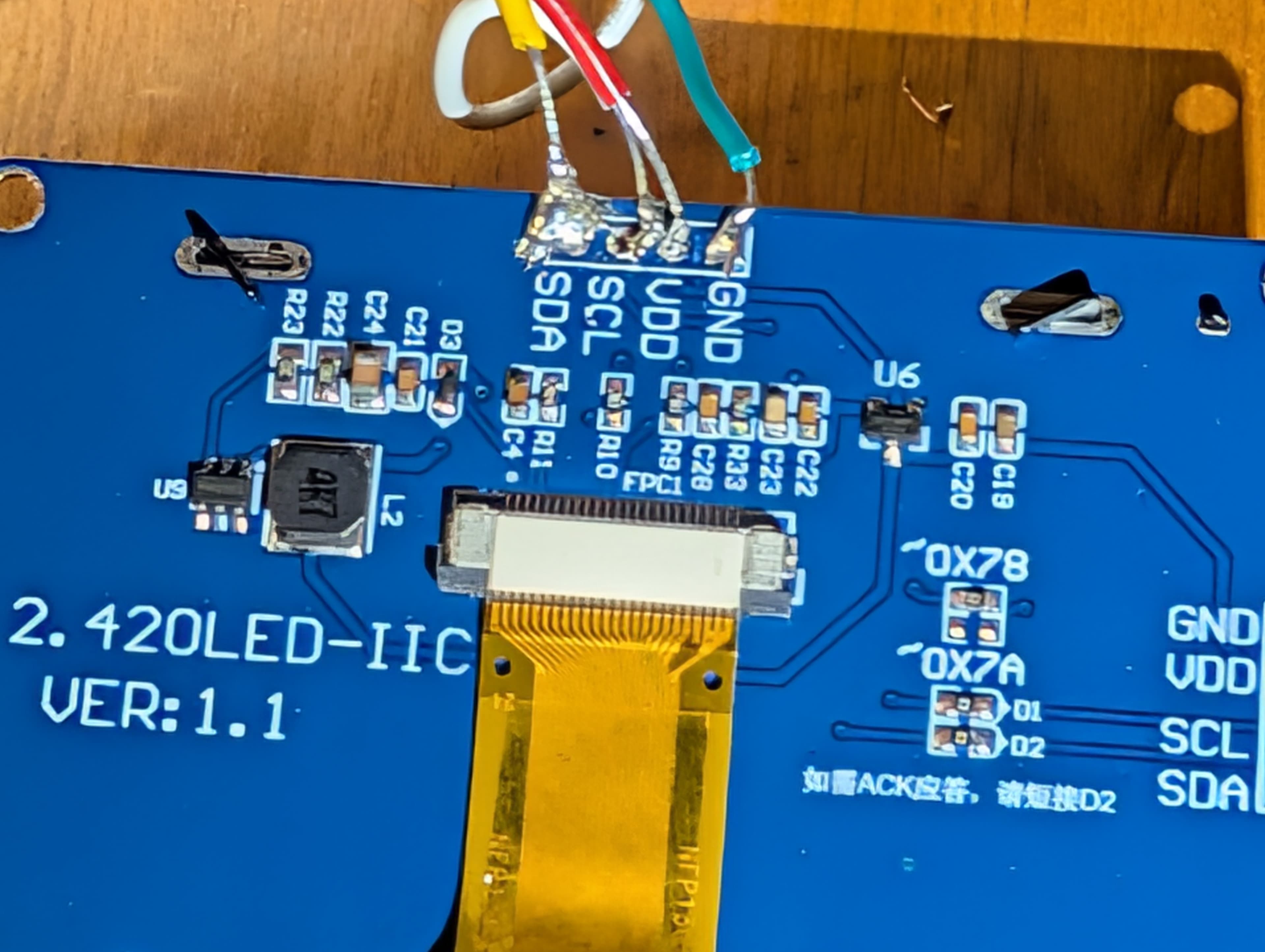
This section isn't a build step — it's a cautionary tale about choosing components and the limits of AI-assisted debugging.
When I designed Roam, I wanted a big, readable screen. The 2.42" SSD1309 OLED seemed perfect — gorgeous, crisp, and available in both SPI and I2C variants. I ordered one and started integrating it.
Attempt 1: 2.42" SSD1309 (I2C)
The screen arrived and I wired it up. Nothing. Blank screen. I spent an evening with Claude Code trying different I2C addresses, different initialization sequences, different libraries. The SSD1309 is theoretically compatible with SSD1306 drivers (it's a superset), but this particular module refused to respond. I2C scan showed the address, but the display wouldn't initialize.
Claude Code went deep — generated custom init sequences, tried bit-banging I2C, suggested it might be an SPI-only module mislabeled as I2C. After hours of this, I ordered a second screen.
Attempt 2: Different 2.42" SSD1309
Same story. Different supplier, same result. At this point Claude Code and I had tried every SSD1309 library on GitHub, written custom framebuffer drivers, and even tried running the display at different I2C clock speeds. The screen would acknowledge its I2C address but wouldn't render pixels.
Attempt 3: 2.42" SSD1309 (SPI)
Maybe the I2C implementation on these modules was broken. I ordered an SPI variant. More wires, more pins used, but at least SPI is simpler protocol-wise. Result: screen flickered once during init, then went dark. Probably a voltage level issue or a counterfeit controller chip.
The Solution: 1.3" SH1106
I gave up on the 2.42" dream and grabbed a 1.3" SH1106 128x64 from my parts bin. Wired it up, used the Adafruit SH110X library, and it just worked. First try. Five minutes from wiring to "Hello World" on screen.
The 1.3" screen is small, but it fits perfectly in both housing variants. It shows everything I need — connection status, current mode, battery icon. Sometimes the right component is the one that works, not the one with the best specs.
Lessons Learned
- Buy screens with known-good library support. The SH1106 and SSD1306 families have battle-tested drivers. Anything else is a gamble.
- AI can't fix hardware problems. Claude Code was incredibly helpful for firmware and software, but when the issue is a bad screen module or mislabeled chip, no amount of code changes will fix it. Know when to swap parts.
- Prototype with what works, optimize later. I lost days trying to make the "perfect" screen work. The 1.3" screen let me finish the project and move on. You can always upgrade components in a future revision.
- The cheap 2.42" OLEDs on Amazon are sketchy. Many use counterfeit or off-spec controller chips. If you really want a larger screen, buy from a reputable source like Adafruit or Pimoroni, where the driver IC is guaranteed.